


GIF Maker, GIF Editor
4.79.88K Reviews
App Specs
- Version
- Varies with Device
- Updated On
- License
- Free
- Downloads
- 10,000,000+
- Developer
- GIF Maker & GIF Editor & Video Maker
- Categories
- Photography
- Platform
- Android
Screenshots
 Analysis by AppCompare
When I need a quick animated image rather than a polished video, GIF Maker, GIF Editor gives me a practical place to start. I can work from photos or video clips, turn a small idea into a shareable loop, and keep the process focused on the result instead of learning a complicated editing suite. I found it especially useful for everyday reactions, short demonstrations, simple social posts, and personal messages where a full video feels excessive.
This is a free photography app from GIF Maker & GIF Editor & Video Maker, aimed at people who want to create GIFs directly on a mobile device. Its appeal is straightforward: the workflow is built around selecting visual material, arranging it, making adjustments, and saving the finished animation. The app has reached over ten million installs, with a 4.7 average from around 337 thousand ratings, so it is clearly not an obscure experiment. Still, popularity does not make it the right tool for every creator, and the details of the editing experience matter more than the download count.
Starting with an idea instead of a blank timeline
The easiest way to use this app is to begin with material I already have. A burst of photos can become a stop-motion-style sequence, while a short video can be trimmed into a reaction or looping moment. That makes the creative starting point less intimidating than opening a traditional video editor with a crowded timeline and a long list of professional controls.
I like this approach for small, clearly defined jobs. If I want to show how a physical object works, highlight a funny expression, or turn several related images into a moving post, the app keeps the first decision simple: should the source be images or video? That choice shapes the rest of the project without forcing me to build a production from scratch.
There is also a useful distinction between making something animated and making something watchable. A sequence can technically move while still feeling slow, repetitive, or difficult to understand. Before importing anything, I recommend choosing a single action or visual joke. A GIF usually works best when the viewer understands the point quickly and the ending connects naturally back to the beginning.
For a realistic everyday example, imagine I am selling a handmade item online and want to show a clasp opening. I could capture a few still images from closed to open, arrange them in order, and create a compact loop. That may communicate the movement more clearly than several written sentences, while avoiding the heavier file and production demands of a conventional video.
The app is also suitable for people who do not want their creative work covered by a visible watermark. That is an important practical advantage for a personal portfolio, a classroom project, or a small business post. I would still check the final file before publishing, because a clean-looking export is only useful if the framing and timing are also right.
Worth Reading Before You Choose

EA SPORTS FC Mobile 26 Is a Bigger Football Game, but It Takes Time

Flipboard Shows What News Apps Must Do Beyond the Feed

Switching to Android Auto Means Rethinking Your Driving Routine

Google Calendar Makes a Crowded Week Easier to Manage

Ludo King Makes the Most of the Minutes Between Plans

Baby Panda World Brings Quick Play to Modern Phones, but Its Game Library Feels Busy
Choosing source material that survives conversion
Not every photo set makes a good GIF. Images with noticeably different crops can produce distracting jumps, and photographs taken from changing angles may look accidental rather than animated. I get better results when the subject stays in roughly the same position and the background does not change too much between frames.
Video requires a different kind of preparation. A long recording contains too many possible moments, so selecting a short, self-contained action is more effective than trying to preserve an entire scene. I would identify the exact movement I want first, then use only that section. This reduces visual clutter and makes the loop easier to judge on a phone screen.
One less obvious tip is to think about the first and last frames before editing. If the final image is visually close to the opening image, the transition feels intentional. If the subject suddenly jumps back to its starting position, the loop can look broken even when the source footage is good. Planning the loop boundary early saves more time than repeatedly adjusting a weak sequence later.
Building the animation and controlling the rhythm
Once the source is selected, the app’s value comes from turning raw images or video into a sequence that has a readable rhythm. I approach this in passes. First I remove anything that does not contribute to the action. Then I check the order, watch the movement as a whole, and only after that worry about presentation. This prevents me from polishing frames that I will eventually delete.
Image-based GIFs benefit from deliberate ordering. A set of photos can tell a clear visual story if each frame advances the action, but extra frames can make the result feel sluggish. On the other hand, removing too many can make the motion appear to jump. The right balance depends on the subject: a simple hand gesture may need fewer stages than a product demonstration where small changes matter.
With video, the main challenge is restraint. It is tempting to keep a longer clip because the original footage feels natural, but a GIF is usually consumed differently from a video. Viewers may see it repeatedly, often without sound, and the loop needs to remain understandable after several repetitions. I prefer a short section with one clear purpose over a complete scene with unnecessary lead-in and aftermath.
The most useful editing habit is to judge the animation at its final viewing size, not only while zoomed in during editing. A detail that looks obvious on a large preview may disappear when the GIF is viewed in a chat or embedded in a small post. I check whether the subject remains recognizable, whether the movement reads immediately, and whether the background competes with the action.
That is where this app feels more approachable than a full desktop editor. I do not need to manage a complex project structure for a simple loop. The trade-off is that creators who want precise, multi-layer compositing, detailed color work, or advanced motion design may find the workflow too limited. This is a focused GIF tool, not a replacement for professional video software.
Making simple edits serve the message
When I edit a reaction GIF, timing matters more than decoration. The viewer should see the setup, recognize the expression or movement, and reach the payoff without waiting. For an instructional GIF, clarity comes first: the object should remain visible, the action should not be hidden by a busy background, and the loop should return cleanly to the starting state.
There is a temptation with any editor to add changes simply because they are available. I avoid that. If a visual adjustment makes the subject harder to follow, it is not helping the finished piece. The strongest result often comes from a small number of deliberate choices: a clean source, a sensible sequence, and timing that matches the action.
For image sequences, I would prepare the photos before importing whenever possible. Consistent orientation and framing make the app’s work easier and reduce the need to compensate for mismatched material. For video, I would record with the final crop in mind. Leaving a little space around the subject gives more flexibility than filming it tightly against the edge of the frame.
Another practical insight is to make a test version before committing to a large project. A short sample reveals whether the movement is too fast, whether the source is sharp enough, and whether the loop makes sense. This is particularly helpful when converting a collection of images, because the problem may be in the source order rather than in the editor itself.
Iterating without losing the original idea
Good GIF creation is usually an editing exercise rather than a one-click conversion. My first version is mainly a way to expose problems. I look for awkward pauses, sudden jumps, an ending that does not connect to the beginning, or a subject that becomes difficult to see. These issues are easier to identify when I watch the whole result repeatedly instead of inspecting individual frames in isolation.
The app works best when I treat each revision as a specific experiment. In one pass I might remove an unnecessary frame; in another I might change the opening point of a video clip. Making several targeted changes is more informative than changing everything at once, because I can tell which adjustment improved the loop and which one made it worse.
This matters for social publishing. A GIF that looks fine in a private message may feel too slow when placed beside other fast-moving content. A demonstration intended for a product page may need a calmer pace so the viewer can understand the mechanism. The same source material can require different editing decisions depending on where I plan to use it.
For a reaction image, I usually favor a quick setup and a distinct expression, with enough repetition for the viewer to catch the joke. For a process GIF, I accept a slower rhythm if every stage contributes information. That difference is easy to overlook when the editor presents both projects through a similar creation flow.
One limitation I noticed in this style of mobile workflow is that judging fine timing on a small screen can be tiring. If a project is important, I would preview it several times and, when possible, view the saved result in the app or service where it will actually appear. Playback behavior can feel different depending on the surrounding interface, available space, and whether the platform scales the image.
Storage and organization also deserve attention. Animated files can become larger than expected when they contain many detailed frames, so I avoid keeping multiple abandoned versions on my device. I name or separate finished exports from test versions, especially when creating several variations for different uses. That simple habit prevents sending an unfinished loop to someone by mistake.
When another tool is a better fit
I would not choose this app for a project that depends on a full video timeline, layered audio, complex titles, or frame-by-frame artistic drawing. A conventional video editor is more suitable when the final delivery needs sound, longer scenes, or exact control over multiple visual elements. A dedicated animation application may be preferable for hand-drawn work where every frame is created rather than selected from photos or video.
I also would not expect a simple GIF workflow to solve poor source quality. Blurry footage, inconsistent lighting, and shaky framing remain visible after conversion. The app can help assemble material, but it cannot turn careless capture into professional-looking motion. If the source is important, I spend more time recording or photographing it cleanly before opening the editor.
For casual users, however, that limitation is balanced by the reduced learning curve. Someone who only needs occasional animated posts may prefer this focused experience to a powerful editor filled with controls they will never use. The right choice depends on whether the priority is speed and accessibility or deep control over the entire production.
Exporting a clean result and handing it off
The final stage is not just pressing save. I first check the loop from the perspective of the person receiving it. Is the main action visible immediately? Does the ending feel deliberate? Is the file being used as a reaction, an explanation, or a promotional asset? Those questions determine whether the export is actually ready for handoff.
The app’s watermark-free output is valuable here because it keeps the result looking like my own work rather than an advertisement for an editor. That makes a difference when I am sharing a finished piece with a client, adding it to a presentation, or posting it under a personal brand. I still keep the original source material separately so I can revise the animation later instead of rebuilding it from memory.
Before sending a GIF, I would test it in the intended destination. Messaging apps, social networks, websites, and presentation tools may display animated images differently. Some environments may scale them, place them inside a preview, or make the loop less prominent. A clean export from the app is only one part of the handoff; the surrounding platform affects how the audience experiences it.
For a small business workflow, I would create one master version and then make purposeful variations rather than repeatedly editing the same file. One version might emphasize a product action, while another could focus on a short reaction for social engagement. Keeping those purposes separate avoids a common mistake: trying to make one GIF explain everything and ending up with a crowded, slow animation.
The app is free to use, with in-app purchases listed at $1.99 per item. That makes it easy to try the basic workflow before deciding whether any optional purchase fits my needs. I would evaluate that decision based on how often I create GIFs and whether the available editing process already covers my projects, rather than paying simply because a feature exists.
Its Everyone age rating also makes it approachable for family projects, school activities, and general creative use. That does not remove the need for sensible publishing choices, especially when an animation includes other people or private material. I treat the app as a creation tool and remain responsible for what I import and where I share the finished file.
Who will get the most from it
I recommend it to casual creators, social media users, students, small sellers, and anyone who wants to turn existing images or short video moments into a GIF without opening a desktop editor. It is particularly convenient when the creative idea is already clear and the main job is selecting, arranging, refining, and exporting.
I would be more cautious about recommending it to a professional animator or editor who needs a detailed production pipeline. The focused design that helps beginners can feel restrictive when a project demands exact compositing or a broader range of media controls. In that situation, the app may still be useful for a quick draft, but I would finish the serious work elsewhere.
People who dislike experimenting with timing should also know that the first result may not be the final result. The conversion itself is easy; making the animation feel intentional takes judgment. A few minutes spent removing weak frames and checking the loop can make a bigger difference than adding visual extras.
My verdict for everyday creative work
After using GIF Maker, GIF Editor as a working tool rather than treating it as a one-tap converter, I see its strongest quality clearly: it shortens the path from a handful of images or a short clip to a usable animated result. The watermark-free approach, straightforward mobile workflow, and focus on GIF creation make it a sensible choice for quick visual communication.
Its weaknesses are equally clear. It is not the place I would go for a complex video production, advanced animation, or meticulous multi-layer design. The quality of the finished GIF still depends heavily on the material I provide, and good results require attention to frame selection, loop boundaries, and the context where the animation will be displayed.
The app has been available since Aug 2, 2017, and its strong adoption suggests that the basic idea continues to meet a real need. The developer, GIF Maker & GIF Editor & Video Maker, has kept the product centered on a familiar task instead of making the experience feel like an oversized studio. For me, that focus is its main advantage.
I would choose it when I need a clean, quick GIF from photos or video, and I would choose a fuller editor when the project starts behaving like a video production. If your goal is a reaction loop, a compact demonstration, or a simple animated post, this app is easy to recommend. Just begin with strong source material, edit for the loop rather than the individual frame, test the result where it will be shared, and remember that a short, readable animation usually communicates more effectively than an overloaded one.
Pros
- Converts videos and photos into GIFs quickly
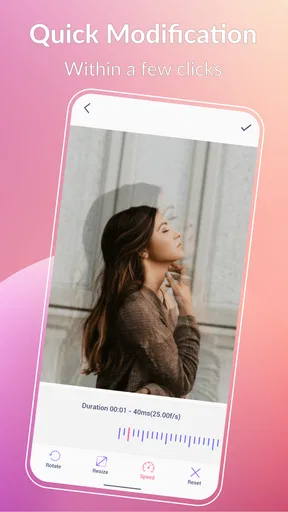
- Includes trimming
- cropping
- and speed controls
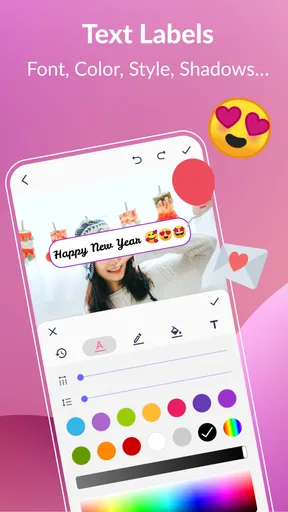
- Supports text
- stickers
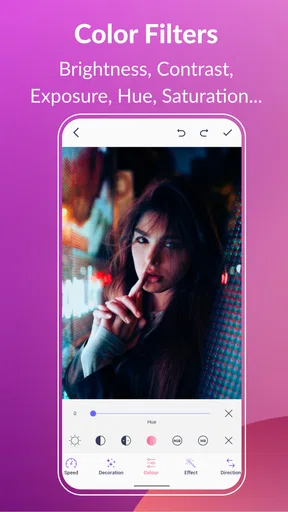
- filters
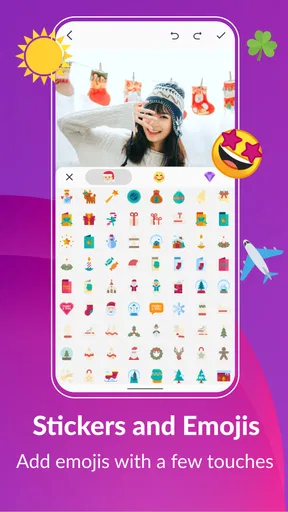
- and drawing tools
- Useful for creating reaction GIFs and social media content
- Simple interface suitable for beginners
Cons
- Some advanced tools may require in-app purchases
- Export quality can vary depending on the source file
- Ads may interrupt editing in the free version
- Large GIFs can take up considerable storage space
- Editing options may feel limited for professional users
FAQs for GIF Maker, GIF Editor
What is GIF Maker, GIF Editor, and what can I do with it?
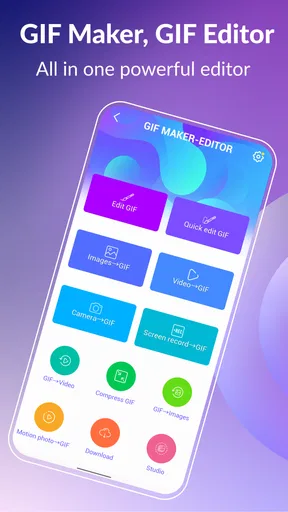
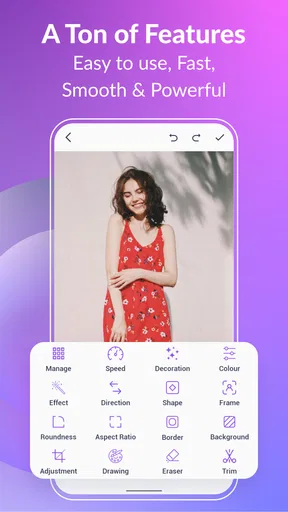
GIF Maker, GIF Editor is a mobile tool for creating animated GIFs from photos, videos, screen recordings, or camera content. During testing, the app was useful for trimming clips, arranging images, adjusting playback speed, adding text or stickers, and exporting the finished animation. It is designed for casual creators who want to make shareable GIFs without using complex desktop editing software.
Can I create a GIF from both photos and videos?
Yes, the app generally supports two common creation methods: combining multiple photos into a slideshow-style GIF or converting a selected video segment into an animation. When using photos, you can usually change their order and control the duration of each frame. For videos, trimming the source clip first is recommended because shorter sections export faster and produce smaller, easier-to-share files.
Does GIF Maker, GIF Editor work offline?
Most basic editing functions can be used without an internet connection because the selected photos and videos are processed directly on the device. This is convenient when you want to create a GIF while traveling or without mobile data. However, features involving online GIF libraries, advertisements, cloud services, or direct sharing to certain platforms may require an active internet connection.
Does the app add a watermark or reduce GIF quality?
The result can depend on the version of the application, export settings, and whether you use free or premium tools. Some editions may place a watermark on certain exports or limit resolution, frame rate, and file size for free users. Before saving an important project, check the preview and export screen carefully so you know whether branding or quality restrictions will be applied.
Is GIF Maker, GIF Editor safe to download and easy for beginners?
The app is generally aimed at beginners and uses a straightforward workflow: choose media, edit the animation, preview it, and save or share the result. As with any editing application, download it from the official Google Play Store or Apple App Store and review its requested permissions. Access to photos or videos is expected, but unnecessary permissions should be treated cautiously.


